
Click a few squares on a grid, press play, and a tune comes out. That is Song Maker, the best-known tool on Google’s Chrome Music Lab. There is no sign-up and nothing to install, which is exactly why so many music teachers hand it to a class on day one. I went through it this week and wrote down the things people keep searching for: how to get more than two octaves, how to save a song, and whether you can get an MP3 out of it.
What Chrome Music Lab is, in two lines
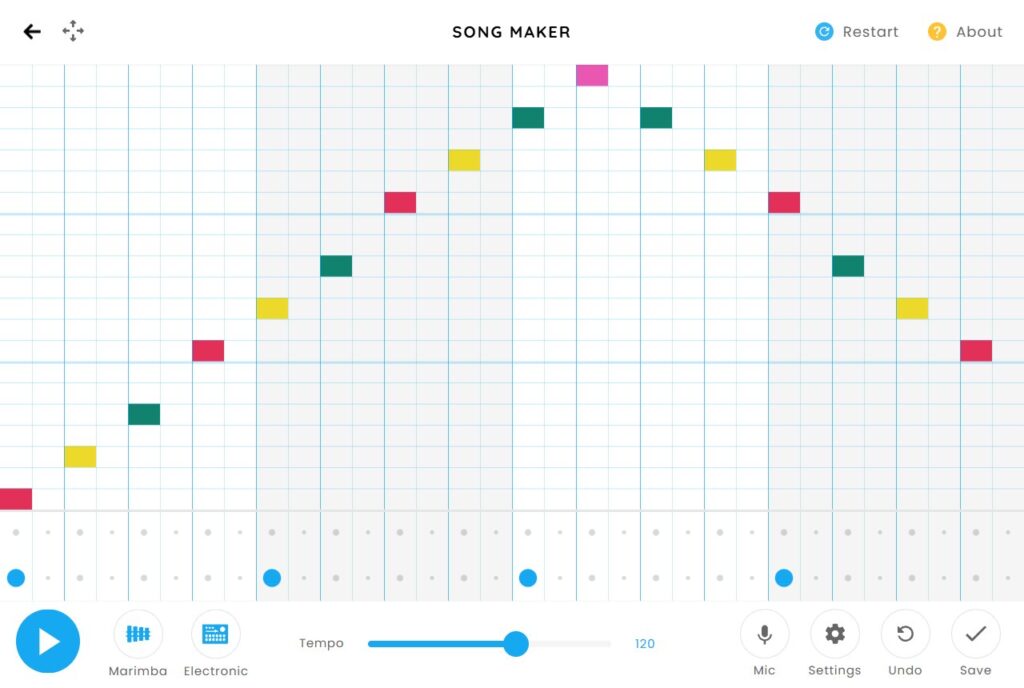
Google describes Chrome Music Lab as “a website that makes learning music more accessible through fun, hands-on experiments.” The home page lists 14 of them, from a spinning voice recorder to a drawing tool that turns scribbles into sound. According to the site’s own FAQ you don’t need an account, and it works in an ordinary browser on phones, tablets and laptops.
How to make a song in Chrome Music Lab Song Maker
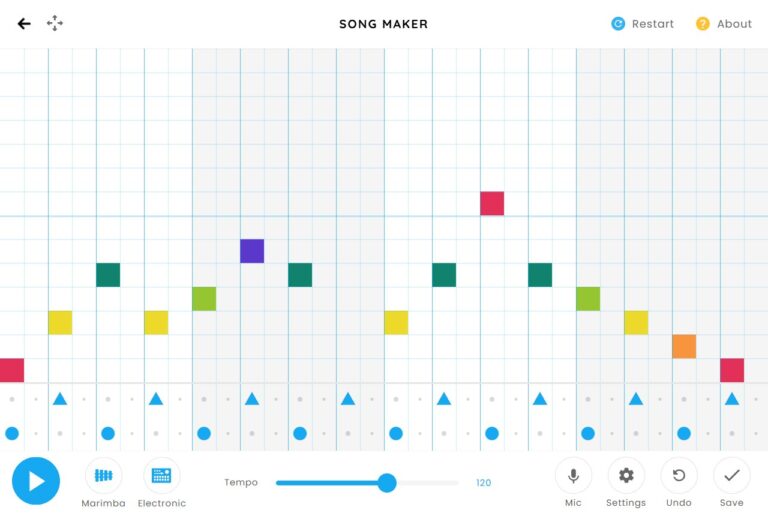
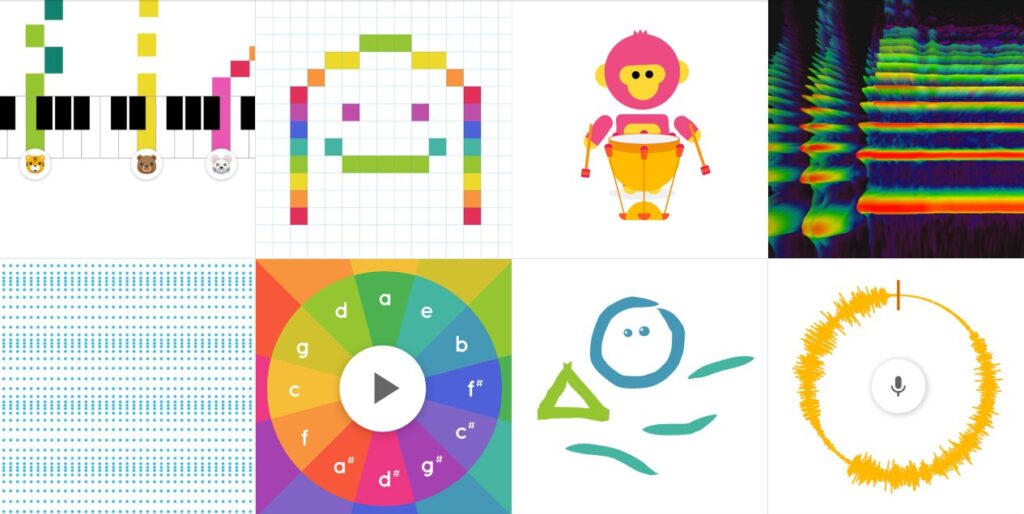
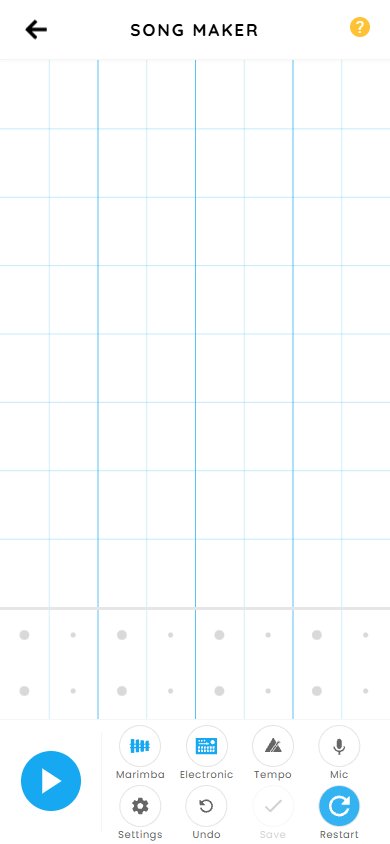
Open Song Maker and you get an empty grid. Time runs left to right, pitch goes up as you move up the grid, and the two grey rows at the bottom are for drums: a triangle on the top row, a circle on the bottom one. Click a square and a note appears; click the same square again and it disappears. Then hit the big round play button.
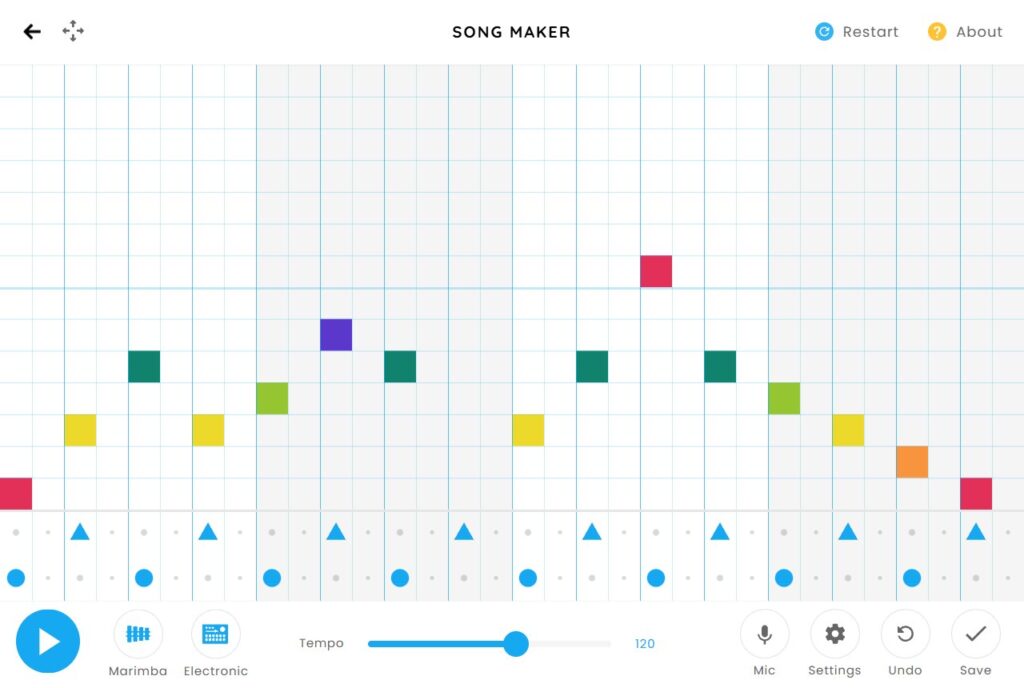
Undo steps back one change at a time. Restart, at the top right, wipes the grid, so keep your cursor away from it once you have something you like.
The mouse is optional. Song Maker’s About panel lists the keyboard controls: arrow keys to move, Enter to add a note, Backspace to remove one and the spacebar to play. You can also plug in a MIDI keyboard, or press Mic and sing a note to have it placed on the grid. The browser will ask for microphone permission the first time.
How to get more octaves in Song Maker
This is the question that shows up most in search suggestions. The grid starts with two octaves, and the answer is hidden behind the gear icon. Open Settings, press the plus button next to Range, and it goes up to three octaves. That is the ceiling; the plus stops working after three.
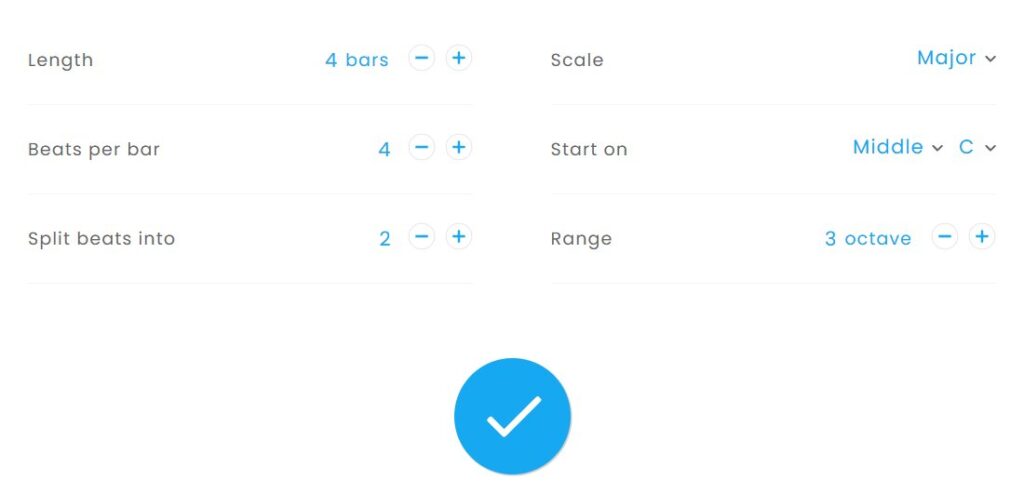
If three octaves still isn’t the part of the keyboard you want, change Start on. It lets you pick Low, Middle or High and any of the 12 notes as the bottom of the grid, so you can slide the whole range down for a bass line or up for a whistle-type melody.
The other settings, and what they do
| Setting | Default | Range |
|---|---|---|
| Length | 4 bars | 1 to 16 bars |
| Beats per bar | 4 | 2 to 7 |
| Split beats into | 2 | 1 to 4 |
| Range | 2 octaves | 1 to 3 octaves |
| Tempo | 120 | 40 to 240 |
Scale has three choices. Major is the default. Pentatonic leaves out the half steps, so almost any combination of squares sounds fine together, which is handy with younger kids. Chromatic gives you every semitone, sharps and flats included, and the grid gets noticeably denser.
The instrument button next to play starts on Marimba and each press moves it along: Piano, then Strings, Woodwind, and last of all Synth. The drum button beside it switches between Electronic, Blocks, Kit and Conga.
How to save and share a Song Maker song
The Save button stays greyed out until the grid has at least one note. Song Maker’s own instructions are short: make a song, “then, share your song with a link.” Teacher guides and school sites that walk through the Save screen describe four things on it: copy the link, grab an embed code for a web page, download a WAV file, or download a MIDI file.
Chrome Music Lab has no accounts, so there is also no “my songs” page. If you lose the link, the song is effectively gone for you. Paste it somewhere safe as soon as you save. On Chromebooks, one teacher reported on the project’s GitHub page that the MIDI button did nothing while WAV downloaded fine, so try WAV first if MIDI misbehaves.
Can you download Song Maker as an MP3?
Not directly from Chrome Music Lab. The download options described for the Save screen are WAV and MIDI. If you need an MP3, download the WAV and convert it with any audio converter you already trust. MIDI is the better pick if you want to keep editing the notes in a program like GarageBand.
Using Chrome Music Lab on a phone
Song Maker works on a phone, but the screen shows roughly one bar at a time and the buttons stack into two rows. Fine for a four-bar idea, fiddly for a 16-bar song. A tablet or laptop is the more comfortable place to build something long.
Three more Chrome Music Lab experiments worth opening
Kandinsky
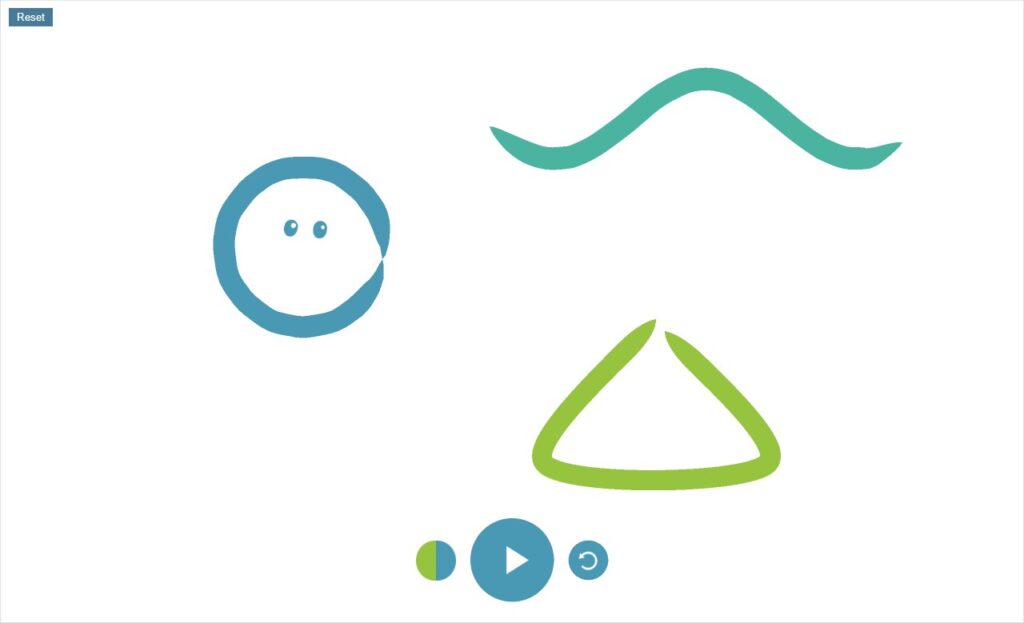
This Chrome Music Lab experiment is named after the painter Wassily Kandinsky, who compared painting to making music. Anything you draw turns into sound. Draw a circle and it grows a pair of eyes; press play and the shapes wiggle as they play. Reset at the top left clears the page.
Rhythm
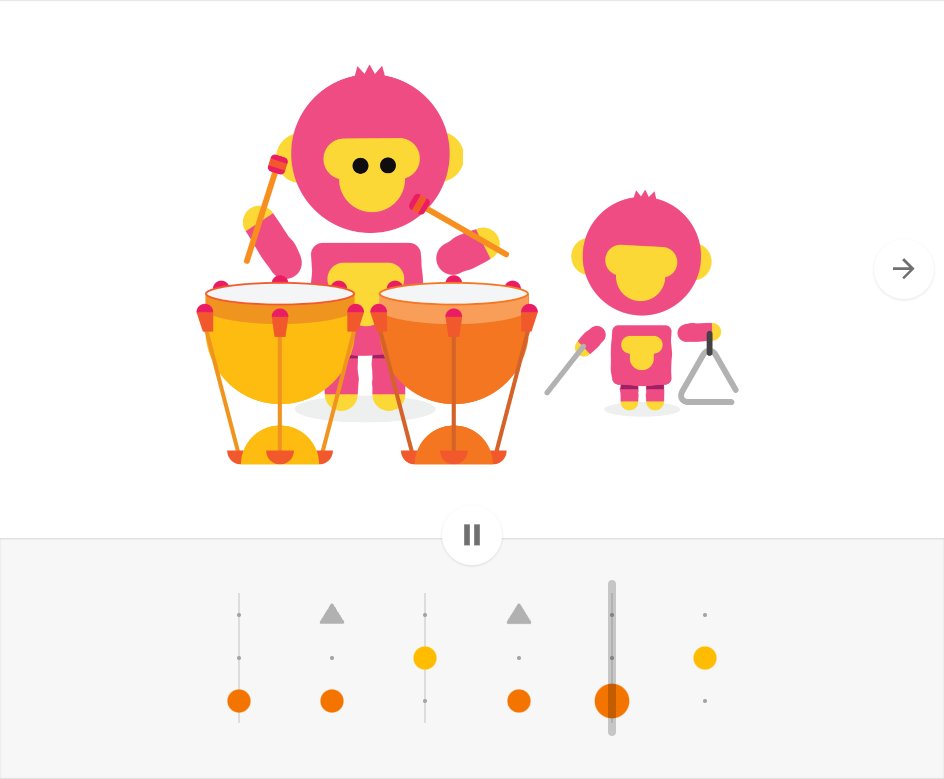
Rhythm is the Chrome Music Lab experiment built around a tiny step grid. Put dots on the small grid and a pair of cartoon drummers play them back. The arrow on the right swaps in new characters and changes how many beats sit in each bar, a nice way to show that rhythm doesn’t have to come in fours.
Shared Piano
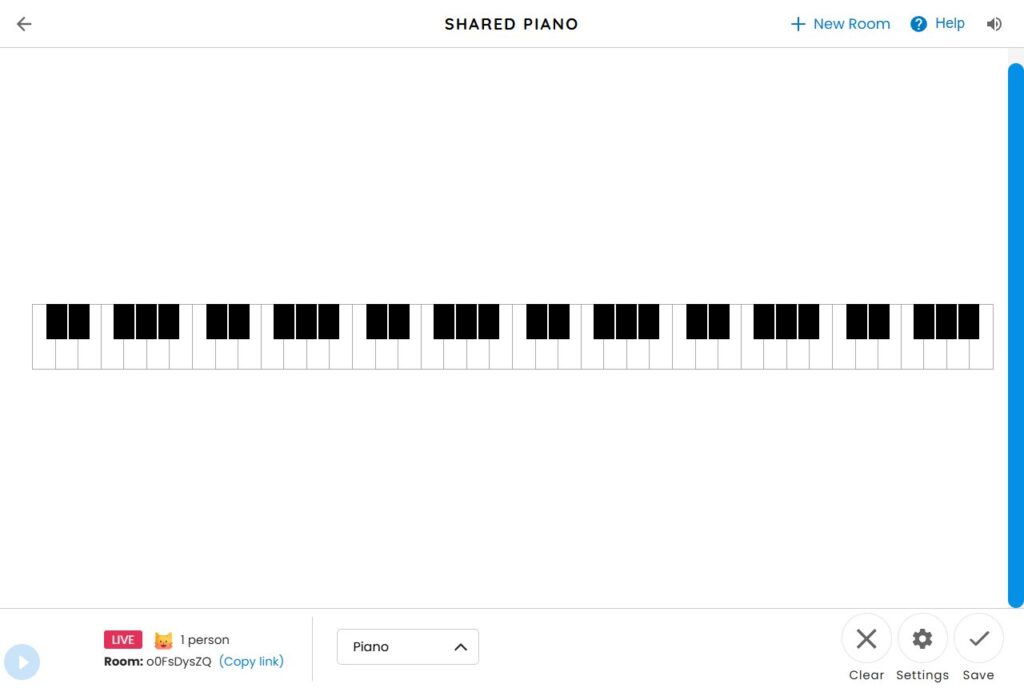
One piano, several people, all online at once. Opening it creates a room, and anyone with the link can join. The help page says up to 10 people can play together with no login. It also warns that some delay is unavoidable and that Bluetooth headphones add to it. One more line from that help page is worth knowing before kids start pressing Save: because there are no accounts, saved song links can’t be deleted on request.
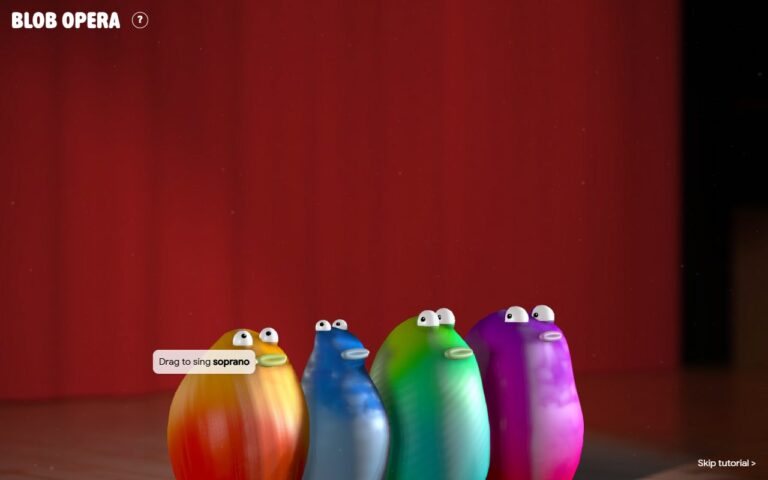
If you liked this, the same blog has a Blob Opera guide, another free Google music toy where four blobs sing opera. Korean readers can find this article in Korean at 크롬 뮤직랩 송메이커 하는 법.
Checked on September 30, 2026 on the official Chrome Music Lab site. Setting ranges were read from the page itself. The Save screen options come from published teacher guides, not from a saved song.