
Search for free OCR online and you get a wall of tools that promise to turn any picture into text. (OCR, or optical character recognition, reads the words in an image so you can copy them.) On a clean screenshot, most do fine. But what about a tilted, slightly blurry picture with small gray print on a busy background?
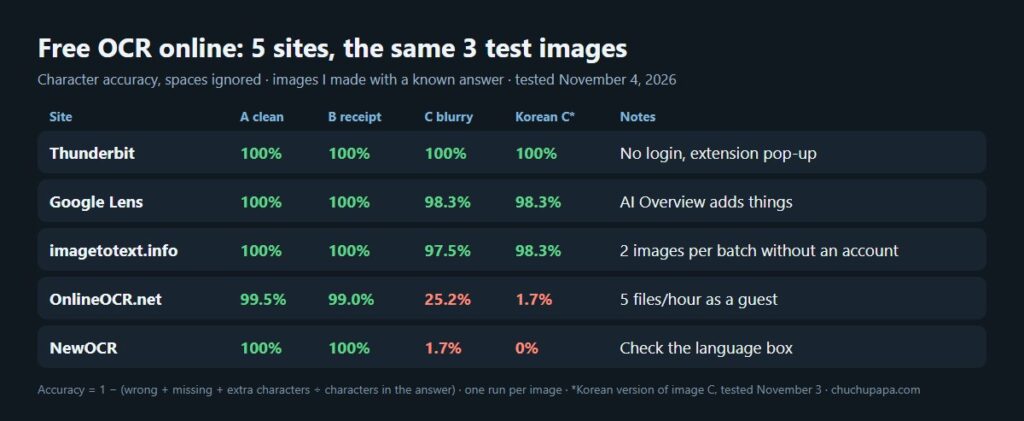
So I made three test images with a known answer and ran the same files through five free sites. All five handled the clean image and the tilted receipt, but only three survived the hardest, blurriest image. Thunderbit read every character, Google Lens and imagetotext.info got two or three punctuation marks wrong, and OnlineOCR.net and NewOCR returned mostly garbage.
How I tested these free OCR online tools
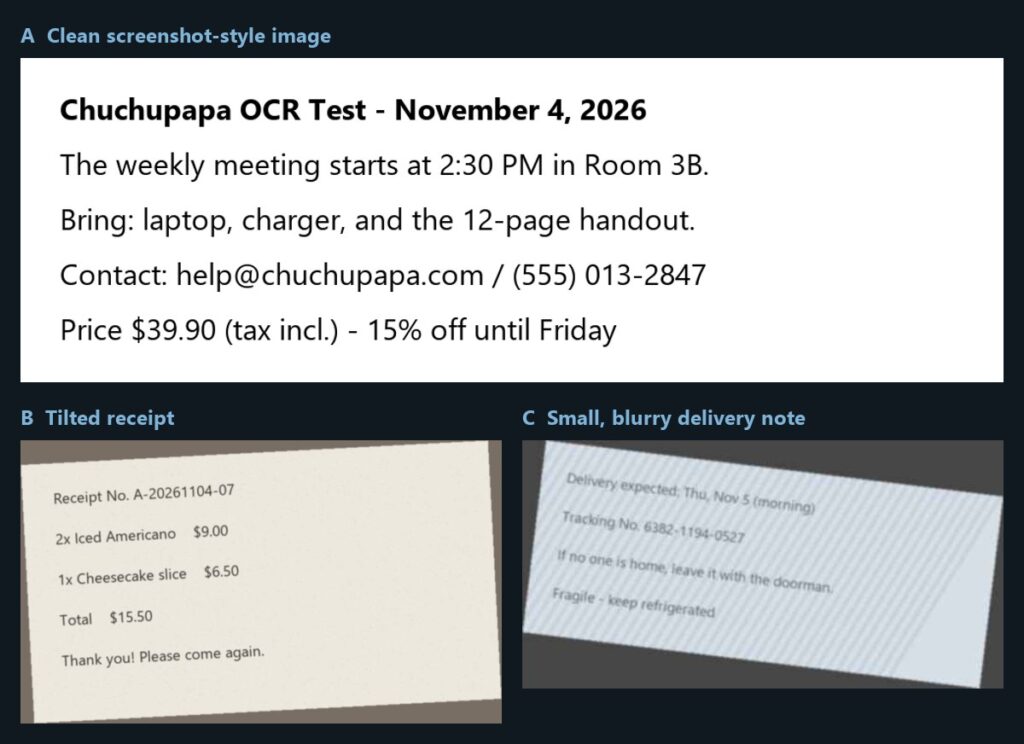
I made the images on my computer so I’d know the exact answer, adding tilt, blur and compression to imitate a phone picture. A is a clean, screenshot-style image on white. B is a receipt on a paper texture, tilted 3 degrees and slightly blurred. C is the hard one: a small gray delivery note on a striped background, tilted 7 degrees, blurred, shrunk to 80% and saved as a heavily compressed JPEG, like an image passed around in a chat app.
To score each result, I compared it with the answer character by character and counted every wrong, missing or extra character. Image C has 119 characters, so two mistakes give 117 ÷ 119 = 98.3%. Spaces and line breaks don’t count, since every site formats lines differently. Each image ran once, so other images could shuffle the order. I didn’t sign in to any of the sites. The one exception is Google Lens, which I used in a Chrome window already signed in to my Google account.
| Site | A clean | B receipt | C blurry |
|---|---|---|---|
| Thunderbit | 100% | 100% | 100% |
| Google Lens | 100% | 100% | 98.3% |
| imagetotext.info | 100% | 100% | 97.5% |
| OnlineOCR.net | 99.5% | 99.0% | 25.2% |
| NewOCR | 100% | 100% | 1.7% |
Thunderbit: the only perfect score
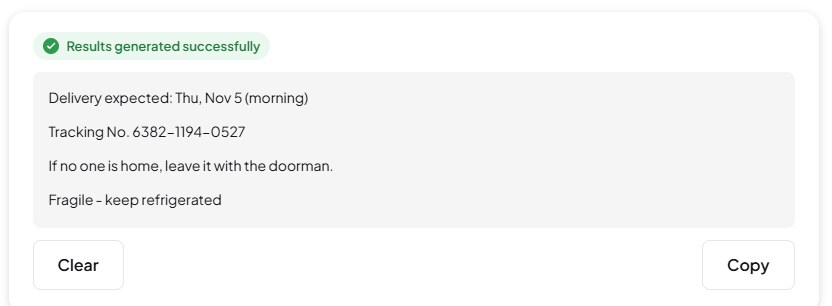
Thunderbit’s Image to Text Converter has “(No Login)” right in its page title, and it really worked without an account. Upload an image, press Extract Text, and the result appeared in about 3 to 16 seconds. All three matched the answer exactly. On the blurry note it kept the colon after “Delivery expected” and the hyphen in “Fragile – keep refrigerated”, which the next two sites got wrong.
Two small annoyances. After a result, a pop-up pushes Thunderbit’s Chrome extension (the company’s main product is web scraping); close it with the × to see your text. The output also adds a blank line between lines.
Google Lens: accurate text, but read the AI Overview with care
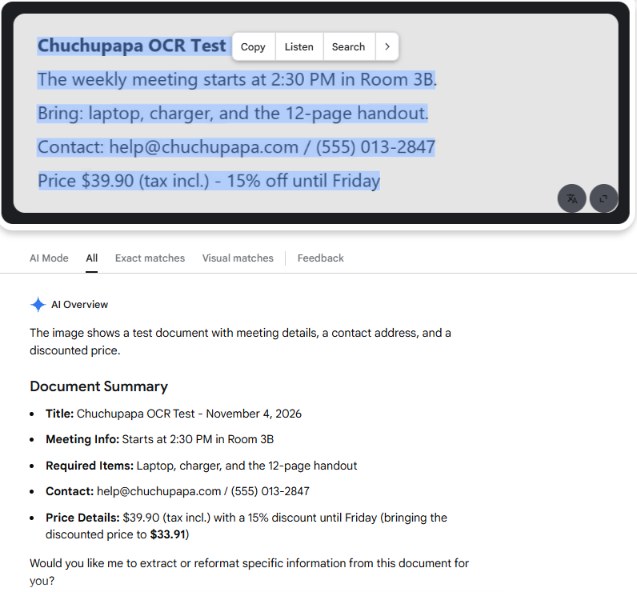
Google Lens is built into Google search, so there’s no new site to learn. Click “Search by image” in the Google search box, upload the picture, then press Select text and Copy. A and B came back perfect. On the blurry note, Lens read “expected:” as “expected,” and dropped the hyphen, for 98.3%.
The catch is the AI Overview that appears under the result. For image A it added “bringing the discounted price to $33.91”. That number is nowhere in the image (and 15% off $39.90 would normally round to $33.92). On the blurry note, the summary was accurate. In my Korean test the day before, though, it named a courier company the note never mentioned. The copied text never added anything; the summary did.
imagetotext.info: a good result, but only 2 images at a time without an account
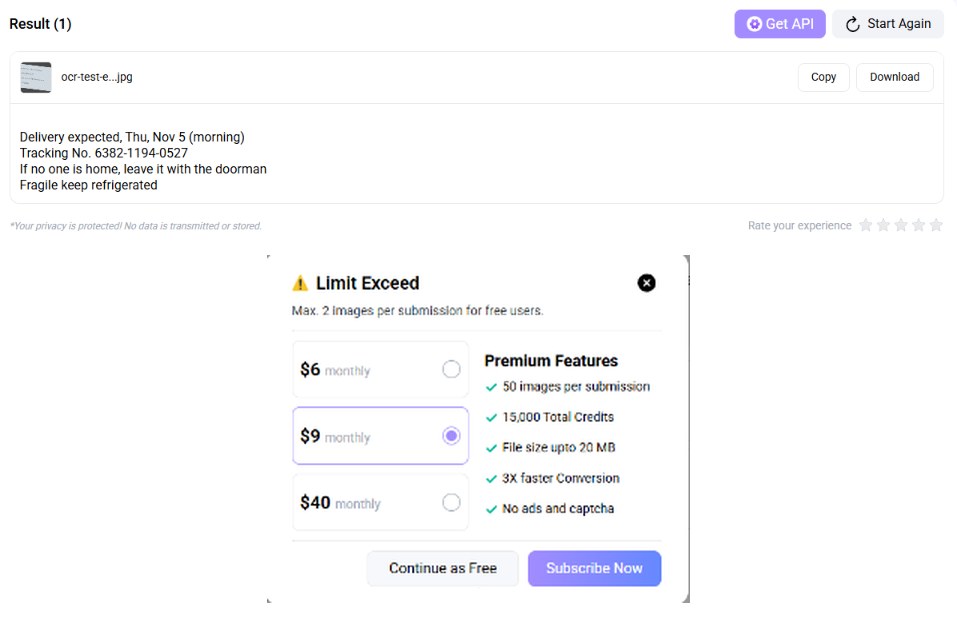
imagetotext.info was the top non-ad result for “image to text free” when I searched google.com in English (US) on November 4. A and B were perfect. The blurry note had three errors (a colon became a comma, and a period and a hyphen disappeared), so it scored 97.5%. On image A it also merged four lines into one paragraph.
When I added all three images at once, a pop-up said free users can submit 2 images at a time, and “Continue as Free” led to a sign-up page. I stopped there and used two batches. The site’s pricing table lists 5 images per submission and 200 credits on the free plan, so that bigger batch seems to need a free account. The page is also crowded with ads, so watch where you click.
OnlineOCR.net: fine on clean images, lost on the hardest one
OnlineOCR.net is built for guests. Its homepage says you can process up to 5 files an hour without registering, at up to 15 MB each, and that guest uploads are deleted once converted. It can read 46 languages, and English was already selected when I opened it.
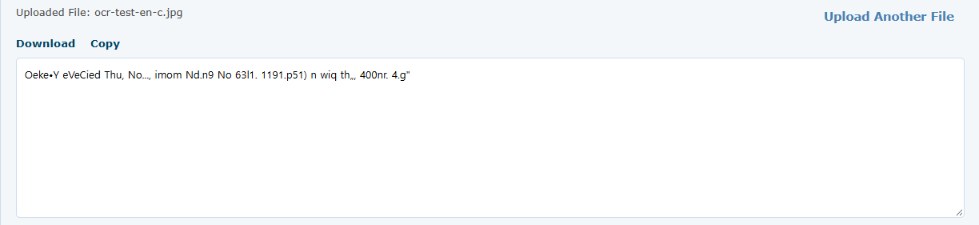
On the clean image it dropped one colon (99.5%). On the receipt it read “1x” as “lx” (99.0%). Every line break was lost, so each result came out as one long paragraph. The blurry note turned into strings like “Oeke•Y eVeCied Thu, No…”, which scored 25.2%.
NewOCR: perfect until the image got hard
The NewOCR homepage promises unlimited uploads with no sign-up, and says your files are deleted when you’re done. It says it is based on the Tesseract OCR engine and lists “122 recognition languages and fonts”. You upload, press Preview, pick a language and press OCR.
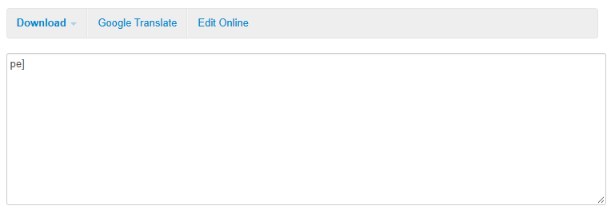
One thing to check: the language box remembered Korean from my earlier test, so I had to switch it to English first. After that, A and B were perfect. The blurry note, though, came back as just “pe]”, or 1.7%. It coped with the tilted receipt, but for an image as rough as C, I’d use something else.
What about text that isn’t English?
I ran the Korean version of these images through the same five sites a day earlier, for a Korean write-up of this comparison. The top three held: Thunderbit scored 100% on all three, and Google Lens and imagetotext.info hit 98.3% on the blurry note. The other two did worse than in English. OnlineOCR.net needed Korean picked by hand and scored 88.1% on the receipt and 1.7% on the blurry note. NewOCR scored 88.7% on the clean image with Korean and English both selected (74.2% with Korean alone), and 0% on the blurry note.
Korean was the only other language I tried, and two of the five sites did much worse with it. If you work in another language, test a short sample on any free OCR online site first.
Tips before you trust free OCR online results
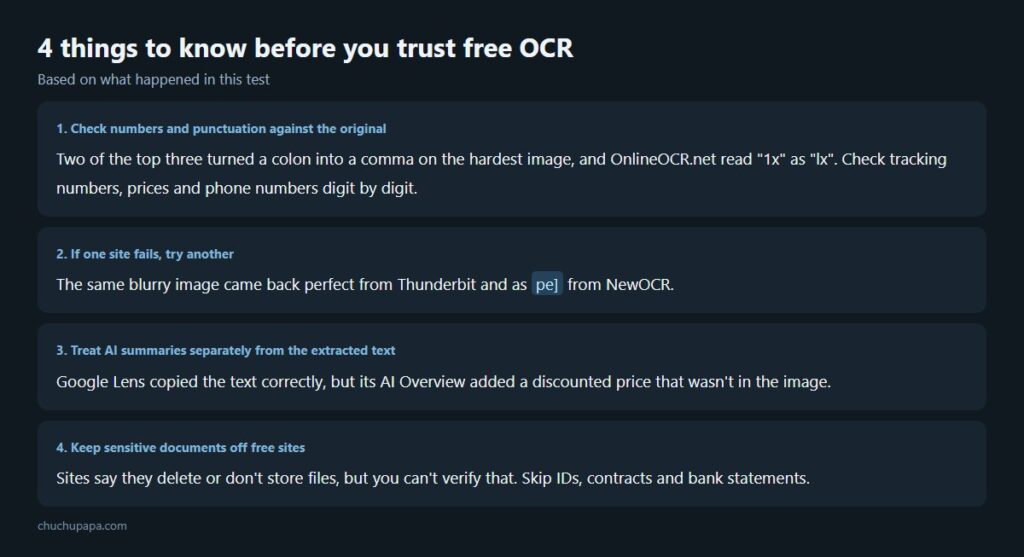
- Check numbers and punctuation against the original. Two of the top three turned a colon into a comma on the hardest image, and OnlineOCR.net read “1x” as “lx”. Tracking numbers, prices and phone numbers deserve a digit-by-digit look.
- If one site fails, try another. The same blurry image came back perfect from Thunderbit and as “pe]” from NewOCR.
- Keep AI summaries apart from the extracted text. Google Lens copied the text correctly, but its AI Overview added a price that wasn’t there.
- Keep sensitive documents off free sites. Three of these sites say they delete or don’t store files, but you can’t check. Skip IDs, contracts and bank statements.
Which free OCR online site should you use?
For rough images, Thunderbit was the most reliable in this test, with Google Lens and imagetotext.info close behind. If you already use Google search, Lens is the easiest option; just copy the text rather than trusting the AI Overview. imagetotext.info works well too, though it took only 2 images at a time without an account.
OnlineOCR.net and NewOCR did well on the clean image and the receipt in English, but both broke down on the hardest note and did worse in Korean. Whichever free OCR online tool you pick, check the result against the original before you use it.
If you also edit images before sharing them, I compared free remove.bg alternatives after remove.bg announced its shutdown.