
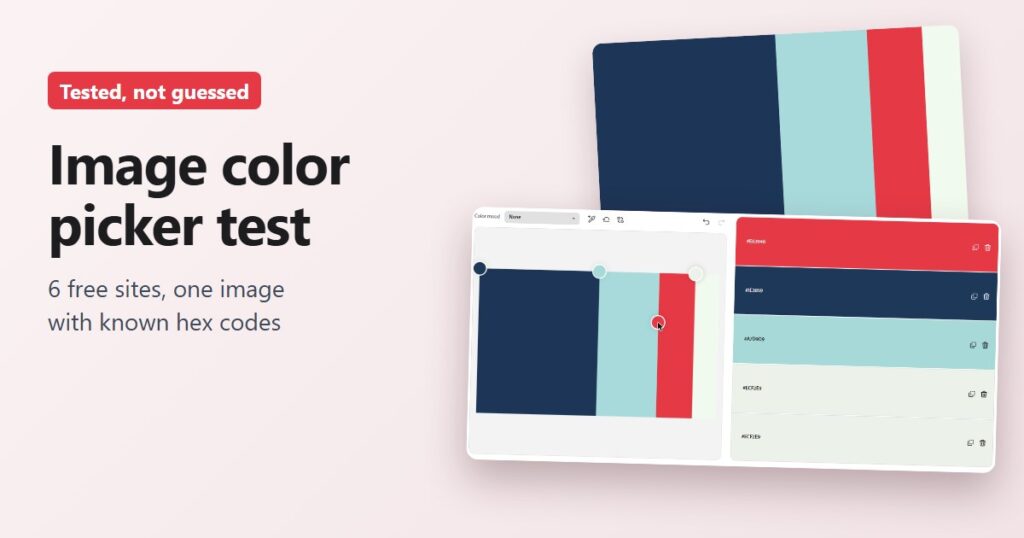
When you pull a hex code out of an image with an image color picker, you rarely know the right answer, so you can’t tell when the tool gets it wrong. I made a test image whose colors I already knew and ran it through six free sites from the top of Google on November 16, 2026.
Three of the six returned all four colors exactly from the PNG: imagecolorpicker.com, HTML Color Codes and Canva. RedKetchup has no palette, but my click on the red stripe came back exact. Coolors left the red out of its palette. Adobe Color gave a noticeably different red until I moved its picker handle by hand. The bigger surprise came from a compressed JPG copy, where Canva added a teal that isn’t in the image at all.
How I tested each image color picker
The image is 1000 by 600 pixels and made of four flat stripes: navy #1D3557 across half the width, light blue #A8DADC on a quarter, red #E63946 on 15 percent and off-white #F1FAEE on the last 10 percent. Flat colors leave no room for argument. A tool either returns those four codes or it doesn’t.

I also saved a JPG copy at quality 60, which is fairly heavy compression, and ran it through two of the palette tools, HTML Color Codes and Canva. Where a code came back different, I measured how far off it was with Delta E (CIE76), a standard color-difference number. Around 2 is about the smallest difference most people can spot side by side, and anything above 10 looks like a different color. I started from each site’s default settings and didn’t sign up for anything, though my browser was already signed in to Adobe (more on that below).
I skipped Figma’s color picker, even though it sits near the top of Google, because its page says uploading an image means agreeing to its terms of service.
imagecolorpicker.com builds the palette and nails the exact pixel
imagecolorpicker.com built a palette the moment the PNG loaded: #1d3557, #a8dadc, #e63946 and #f1faee, all four exact. It also works out how much of the image each color covers (50, 25, 15 and 10 percent here, all correct), but that figure only lives in the label a screen reader announces. On screen the palette blocks are all the same width and show just the hex code.
Clicking the red stripe brought up a zoomed pixel grid and returned #e63946, rgb(230, 57, 70). The page says “no signup needed” and that your image stays on your device.
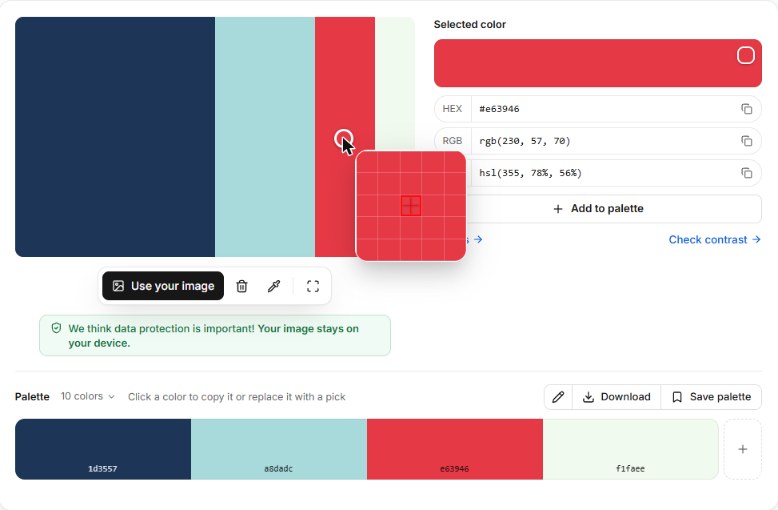
The downside is ads. Banners filled both sides, the top and the bottom of the page, and a video ad box sat in the bottom-right corner.
HTML Color Codes gets the palette right but added a stray color to my JPG
HTML Color Codes dropped four circular markers on the image by itself, one per stripe, and the palette underneath read #1D3557, #A8DADC, #E63946 and #F1FAEE. All four were exact. It doesn’t show percentages, but it gives an 11-step range of lighter and darker versions of the selected color, which helps when you need a hover shade for a button.
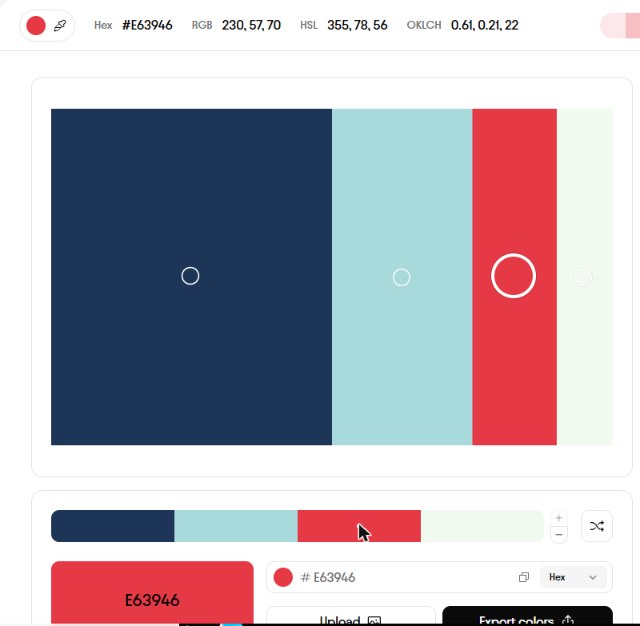
Clicking the image itself didn’t change the selected color. You move the circles or click a block in the palette instead.
The JPG was another matter. The palette grew to five colors, and the extra one, #FFF1E3, is a pale peach that isn’t one of my four colors. In the JPG it exists only as a one-pixel line where the red meets the off-white, a compression artifact, yet it got a full palette slot. The main four shifted slightly: the light blue and off-white were each about 3 Delta E off, and navy and red were about 1 off. You’d barely notice those four shifts, but you might happily copy the peach into a design.
RedKetchup is a plain eyedropper that also tells you the pixel
RedKetchup doesn’t build a palette. You load an image and click. My click on the red stripe returned #E63946 and rgb(230, 57, 70), along with the exact pixel position, X 821 and Y 287. That pixel readout is handy when you need to grab the same spot again later.
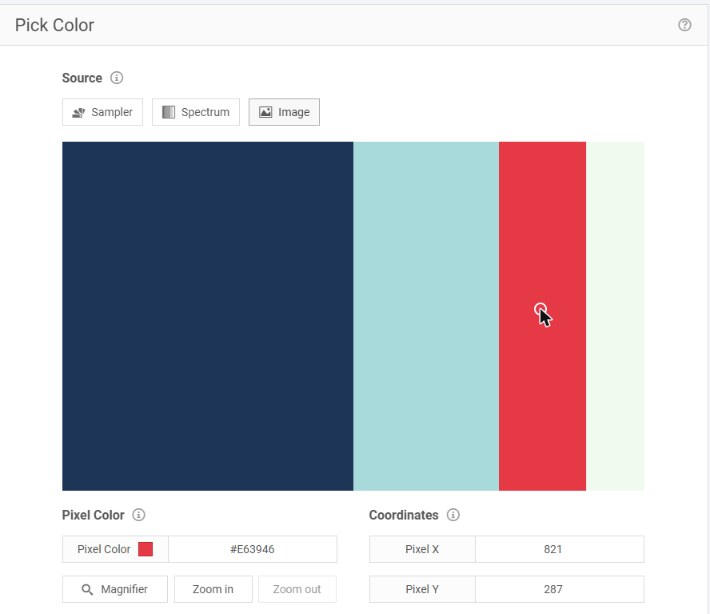
It accepts a long list of formats, including HEIC photos from an iPhone and SVG files, and there are Magnifier and Zoom in buttons for small areas. It didn’t ask me to sign in. There are ads in the sidebar and below the picker.
Coolors left out the red
The Coolors image picker fills a five-color palette automatically. With my test image it chose #F1FAEE, #A8DADC, #1D3557, #F1FAEE and #F1FAEE. The codes it did find were exact, but off-white took three of the five slots and red, the most eye-catching color in the image, wasn’t there.
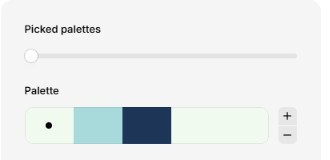
Coolors lets you drag the pickers, which in theory fixes that. My one attempt dropped the circle outside the image, so that slot turned black, and I didn’t try again. If you use Coolors, check that the colors you care about made it into the palette before you export.
Canva is exact on the PNG but not on the compressed copy
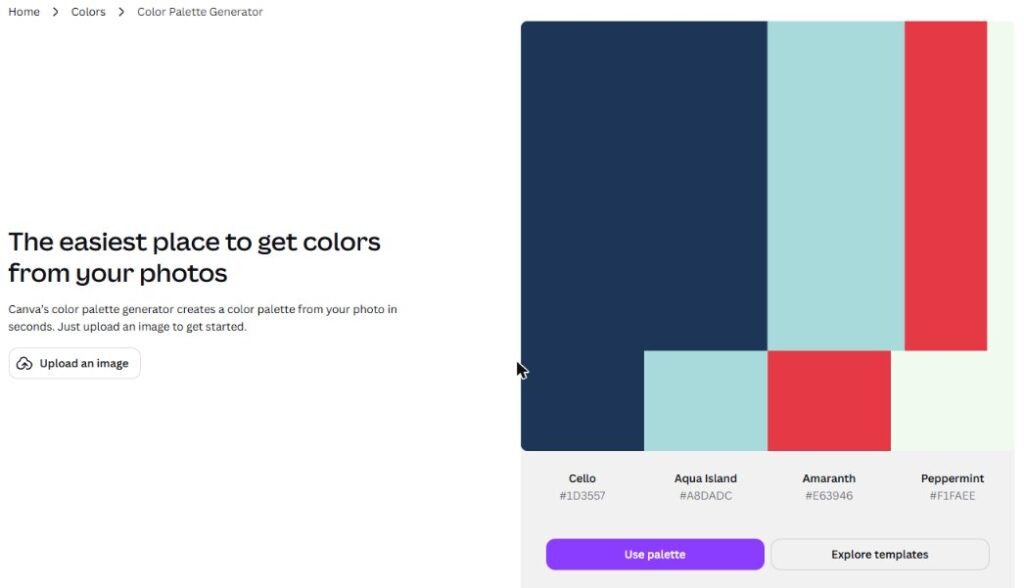
Canva’s color palette generator needs no account for this part. It returned four colors with names: Cello #1D3557, Aqua Island #A8DADC, Amaranth #E63946 and Peppermint #F1FAEE. All four were exact, and there wasn’t a single ad on the page.
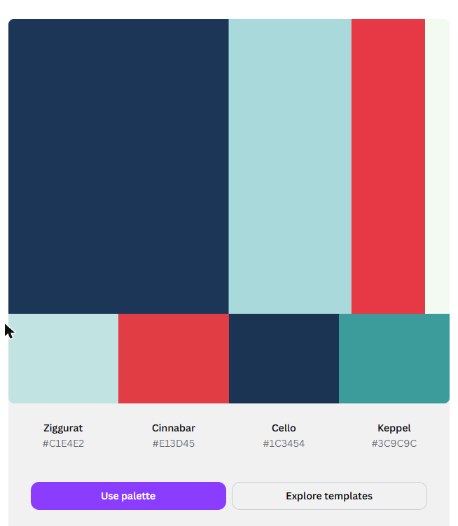
The JPG copy went worse here than on HTML Color Codes, the other site I gave it to. Canva returned #C1E4E2, #E13D45, #1C3454 and #3C9C9C. Navy and red stayed close. The light blue came back noticeably paler, the off-white disappeared, and #3C9C9C is a darker teal my image never had. Its distance from the real light blue is about 27 Delta E, which is a different color, not a rounding error. The page doesn’t say why it happens.
Adobe Color gets the red right once you move its handle
Adobe Color made a five-color palette: #D93B58, #1E3859, #A7D9D9, #ECF2E9 and #ECF2E9. The red was the furthest off of any automatic result on the PNG, about 14 Delta E from #E63946, and you can see the difference when the two sit side by side. The off-white also appeared twice.
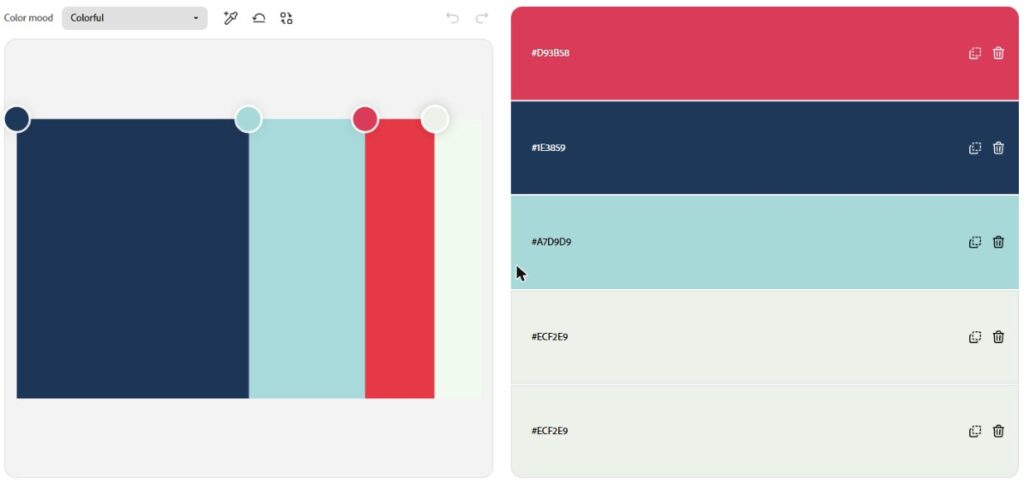
The handle positions were the clue. Every picker handle sat right on the top edge of the image. Switching the color mood from Colorful to None changed nothing. When I dragged the red handle straight down from the top edge to the middle of the image, where it rested on the left edge of the red stripe, the first color changed to #E63946, an exact match.
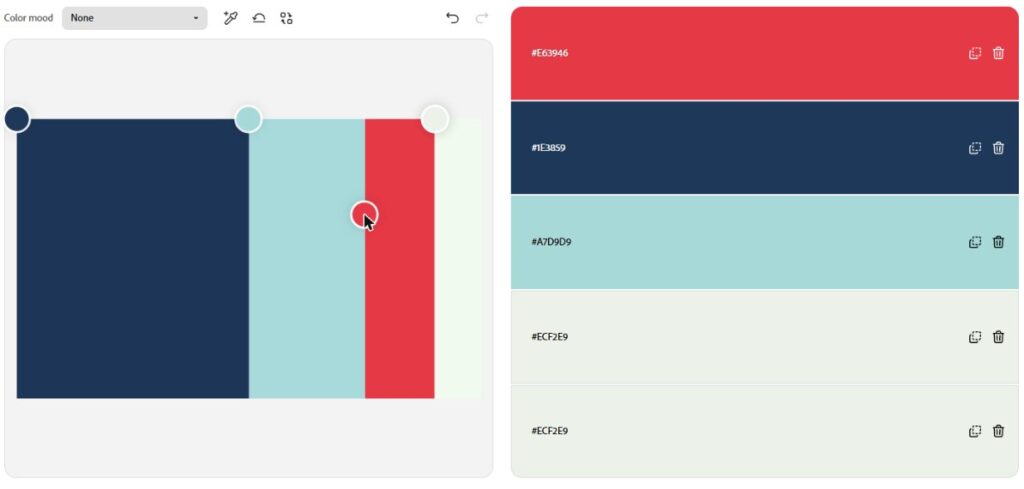
One caveat: my browser was already signed in to an Adobe account, so I can’t confirm what a signed-out visitor sees.
Side-by-side results
| Site | Automatic palette | PNG result | Worth knowing |
|---|---|---|---|
| imagecolorpicker.com | Yes | All 4 exact, click exact | Heavy ads |
| HTML Color Codes | Yes | All 4 exact | Extra peach on the JPG |
| RedKetchup | No (eyedropper) | Click exact | Shows pixel position, many formats |
| Coolors | Yes, 5 slots | Red missing | Off-white repeated 3 times |
| Canva | Yes, with names | All 4 exact | JPG added a teal, no ads |
| Adobe Color | Yes, 5 slots | Red off by 14 Delta E | Exact after moving the handle |
Which image color picker should you use?
If you want an exact automatic palette and a precise click-to-pick magnifier on one page, imagecolorpicker.com did the most, as long as you can live with the ads. Canva was the cleanest page and was exact on the PNG. RedKetchup is the pick when you only need the color of one spot and want its pixel position too.
Whatever image color picker you use, start from the original file. Both sites I fed the compressed JPG to added a color that wasn’t in my original, even though they were perfect on the PNG: a peach picked up from a one-pixel compression fringe, and a teal that isn’t in either file. If a palette tool gets a color wrong or leaves it out, try moving its picker onto that color yourself. That one step turned Adobe’s worst result into an exact one, though my single attempt on Coolors missed the image.
I ran the same kind of test on five sites that rank in Korean search; you can read it in the Korean version of this post.