
Google Puzzle Party is a free game from Google Arts & Culture that turns famous paintings into online jigsaw puzzles. You can solve one alone, or send a link so family and friends in other places can work on the same puzzle with you. Nothing needs installing, and you do not need an account.
We ran Google Puzzle Party in a desktop browser on October 18, 2026, without signing in to anything, and went from the artwork gallery to a live puzzle board in a few clicks. This guide walks through each screen, explains what every button on the toolbar does, shows how the invite works, and covers what to try if a puzzle gets stuck while loading.
What is Google Puzzle Party?
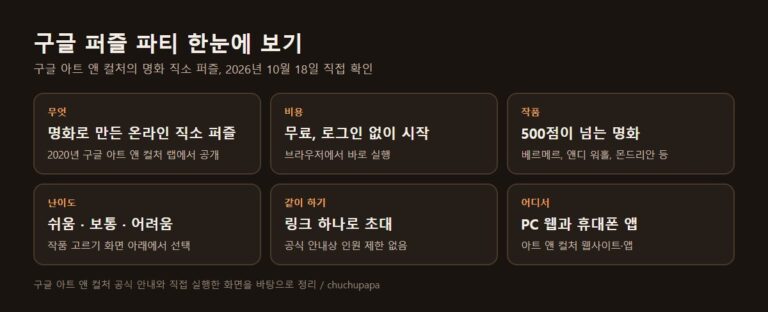
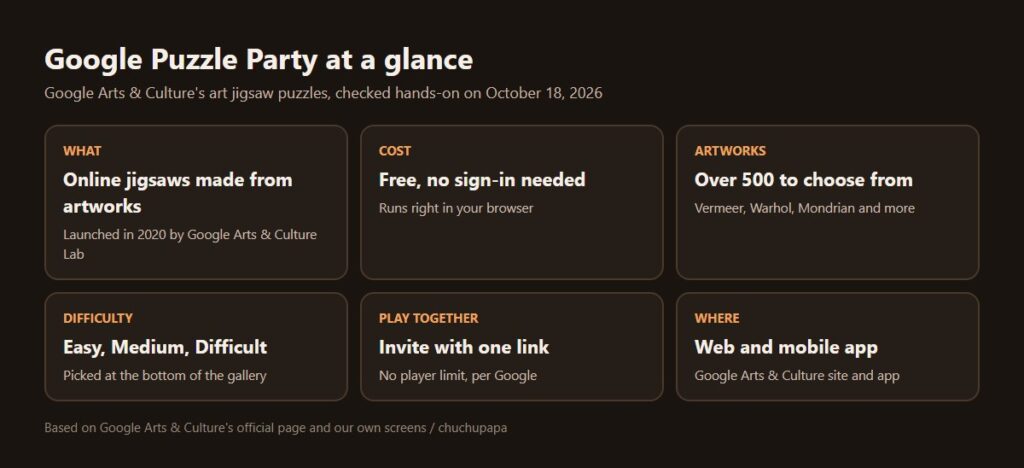
According to the official Puzzle Party page, the game came out in 2020 and was created by Gael Hugo, an artist in residence at the Google Arts & Culture Lab. It grew out of the kind of family get-together where a jigsaw or board game sits on the table and the grandkids try to beat their grandparents, and the goal was to keep that feeling alive when people cannot be in the same room.
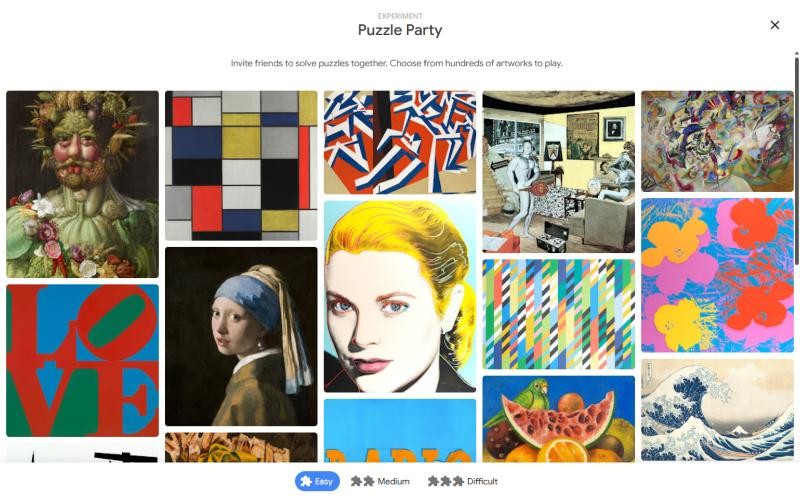
Each puzzle is cut automatically from a work in the Google Arts & Culture collection, and Google counts more than 500 options, from Amy Sherald’s portrait of Michelle Obama to Warhol’s Flowers and Vermeer’s famous girl with the pearl earring. There are also themed editions, such as one made with NASA and a Historic Jeddah edition released in October 2025.
How to start a Google Puzzle Party game
1. Open the page and press Play game
Search for Google Puzzle Party or use the official link above, then press the blue “Play game” button. While the page is still loading, the button shows a short loading state, so give it a second.
2. Pick a difficulty, then an artwork
A gallery of paintings fills the screen. At the bottom you choose Easy, Medium or Difficult, and then you click the artwork you want to solve. For a first game, Easy with a painting that has bold, distinct colors is the most forgiving choice.
3. Choose Solo or Multiplayer
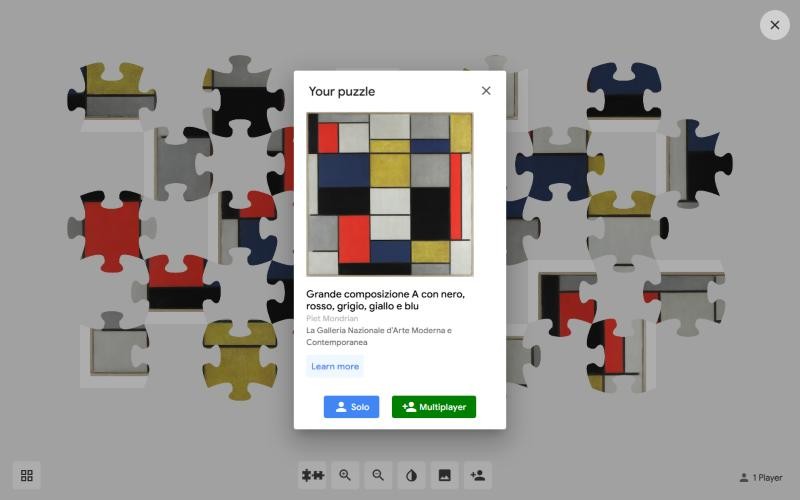
Next, a “Your puzzle” card opens over the scattered pieces. We picked Piet Mondrian’s “Grande composizione A con nero, rosso, grigio, giallo e blu,” and the card showed the title, the artist, the museum that holds it and a “Learn more” link. Press Solo to play by yourself or Multiplayer to bring other people in.
The Google Puzzle Party toolbar, button by button
A row of small buttons sits under the Google Puzzle Party board, and hovering over each one shows its name. Here is what each does, based on clicking through them ourselves:
- Move by group: the puzzle-piece icon. As the name says, it moves pieces you have already joined as one unit. Google’s page also says players can drag single pieces or whole joined clusters.
- Zoom in and zoom out: the two magnifying glasses. Handy on Difficult, when the board gets crowded.
- Background color: the half-filled circle. It switches the table from light gray to dark gray, which makes white and pale pieces much easier to see.
- Preview: the picture icon. It shows the finished artwork and its details in the lower-left corner; press it again to hide them.
- Invite a participant: the person-with-a-plus icon, which opens the share window.
- Back to the gallery: the four-squares icon in the lower-left corner returns you to the artwork picker.
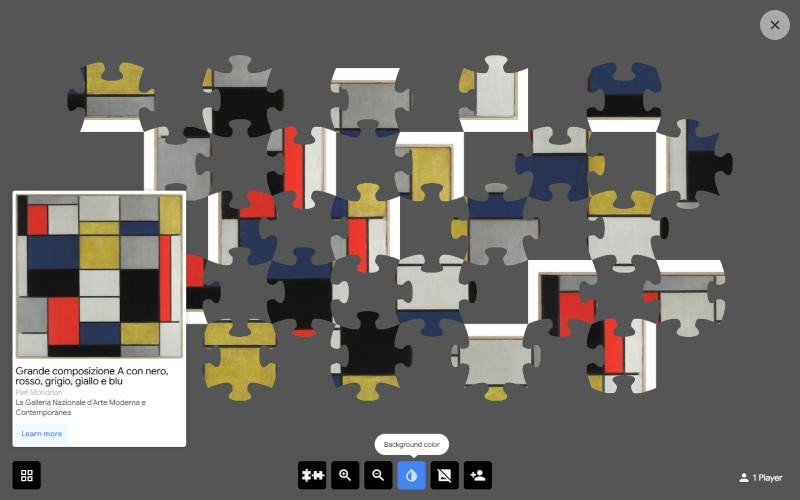
A counter in the lower-right corner shows how many people are on the board, such as “1 Player.” With the default light background, the white areas of the Mondrian blended into the table; switching the background color made the piece edges far clearer.
How to play Google Puzzle Party with friends
Press Multiplayer or the invite button and a Share window appears with buttons for Facebook, X, Pinterest, Email, Tumblr and Google Classroom. Below them is the link to your board; tap it to copy it, then paste it into a text, a chat app or an email to call people to the same puzzle.
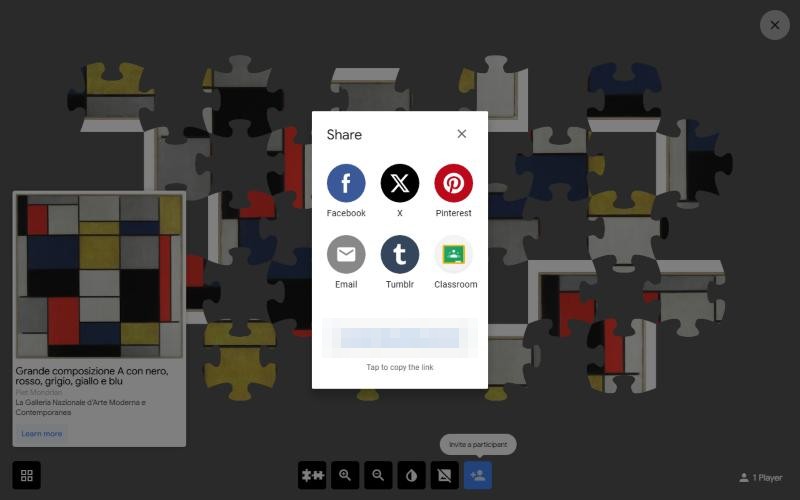
Google says there is no limit to how many people can play at once. Each player drags pieces individually or in groups, and when the last piece goes in, the artwork is revealed in full to everyone. The Classroom button makes it easy for teachers to use it as a warm-up or an art-appreciation activity.
That link opens your specific board, so share it with the people you want to play with rather than posting it publicly, where anyone could join.
If Google Puzzle Party will not load
Our first pick, the Vermeer, sat on the “Your puzzle” card with a loading bar for a long time and never opened. After we reloaded the page and chose a different painting, the puzzle opened right away. If that happens to you:
- Wait about 30 seconds, then reload the page and pick another artwork
- Keep the puzzle tab in front, since browsers can slow down tabs running in the background
- On a phone, try the Google Arts & Culture app instead
Here is Google Arts & Culture’s own short video about the game.
Who will enjoy Google Puzzle Party
Google Puzzle Party works with no sign-in, and a single link puts everyone on the same board, which makes it an easy pick for a video call with faraway grandparents, a quiet evening with kids or a classroom break. For more playful experiments from Google, make the blobs sing in Blob Opera, build a tune in the Chrome Music Lab Song Maker, or turn a sentence into a song with Google Flow Music.