
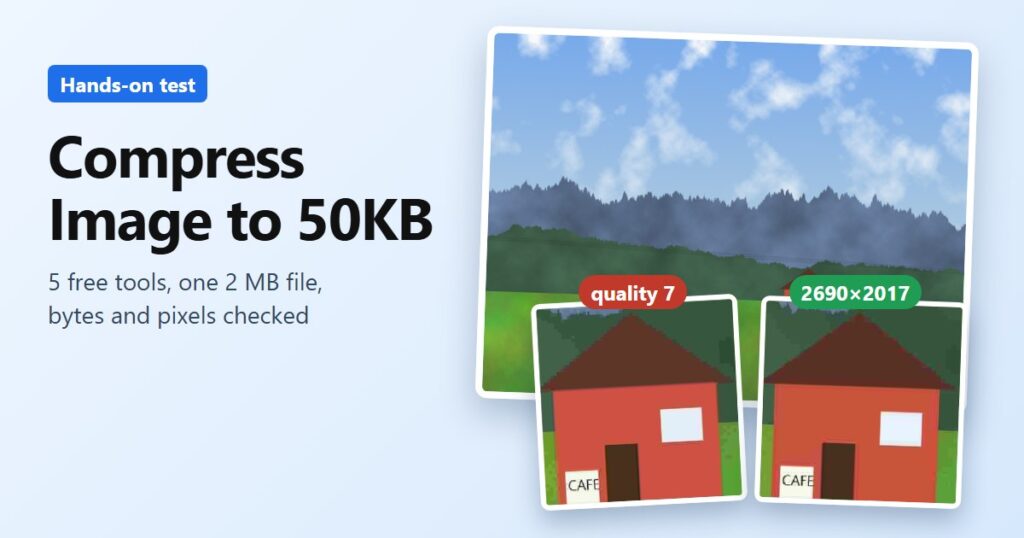
Upload forms love a “max 50 KB” rule, and my 2 MB test image was about 40 times over it. So I took that one file, ran it through five free tools that show up on Google for “compress image to 50kb,” and checked the file each one actually produced: the real byte count and the pixel size, not just the number printed on the screen.
The short version: four of the five landed under 50 KB by the sites’ own count, but they got there in very different ways. Of the tools that resized, W3Schools kept the most pixels (2690×2017) while staying under the limit. Pi7 shrank the picture to 1200×900. Cloudinary kept all 4000×3000 pixels by dropping JPEG quality to 7, and the grass turned blotchy. MB2kB showed 49 kB, but I couldn’t get its file out to check it.
The test file
This isn’t a camera photo. I drew a photo-like landscape in Python so I would know exactly what was in it: 4000×3000 pixels, 2,057 KB, with sky, clouds, a mountain ridge, a band of forest, textured grass and a red house with a tiny “CAFE” sign. The small lettering and thin power lines make an easy yardstick for damage.

Every tool got the same file with its 50 KB preset. I didn’t download the results; I read each output inside the browser tab to get its size and dimensions, and drew the house area of every result next to the original.
Five results, one close-up
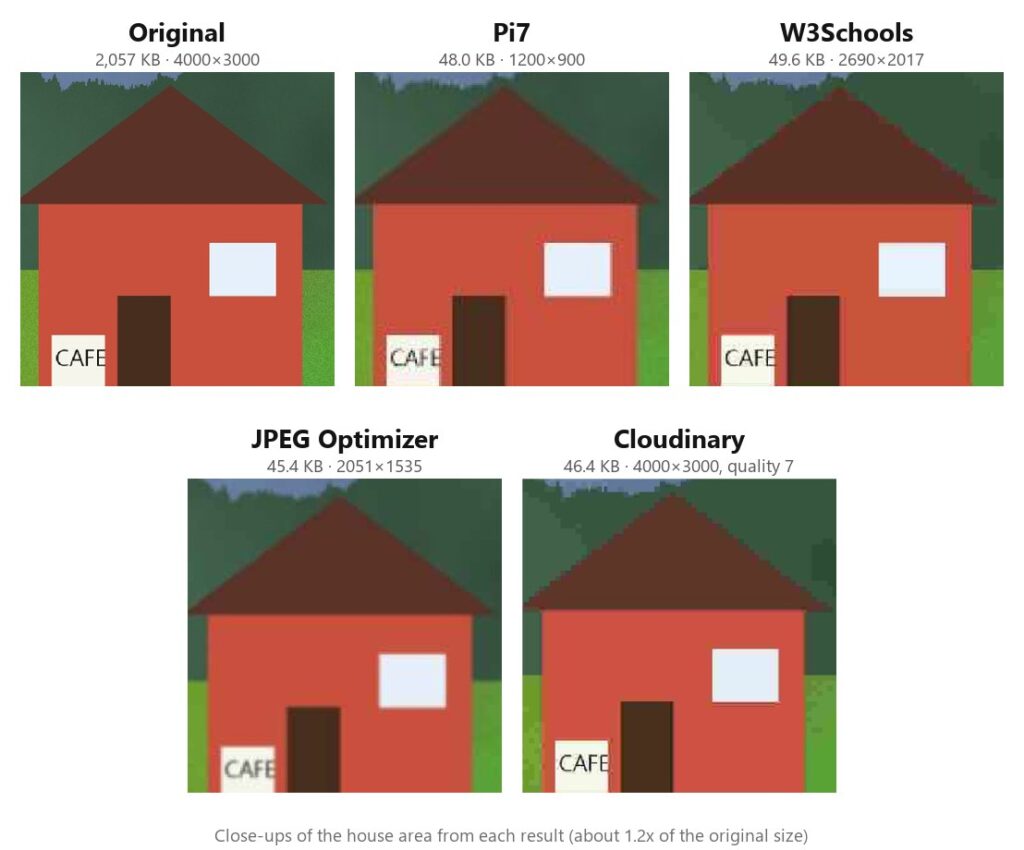
At this zoom you can already sort them. The three tools that cut the pixel count look a little soft but keep their colors and the CAFE sign. Cloudinary keeps every pixel, and you can see the price in the blocky roof edge.
W3Schools kept the most pixels of the resizers
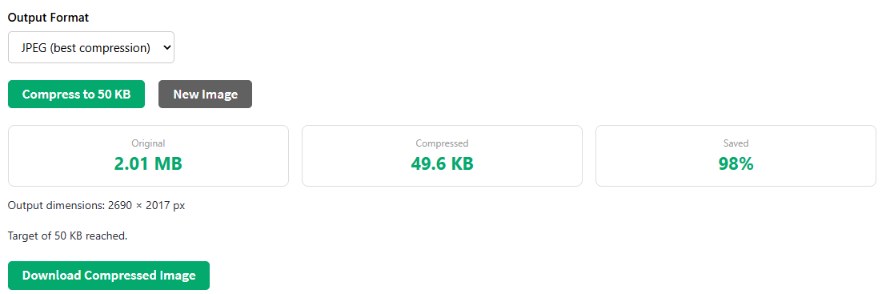
W3Schools’ 50 KB compressor explains its method right on the page: it keeps lowering JPEG quality and, if that isn’t enough, scales the picture down until the file fits. On my file it reported 49.6 KB, “Saved 98%,” and “Output dimensions: 2690 × 2017 px.” The file in memory matched: 50,816 bytes at 2690×2017, the biggest of the resized results. One catch: that’s under 50 KB the way the site counts (1 KB = 1,024 bytes) but over 50,000 bytes, so if a form rejects it, set a slightly lower target.
The page says it runs entirely in your browser. You can also switch the output to WebP. The tool page carries display ads in the sidebar.
Pi7 got to 48 KB by shrinking to 1200×900
Pi7 Image Tool finished with a 49,152-byte file, which it shows as 48 KB. It also said “was 112 KB” and “57% smaller,” which looks odd next to a 2 MB original. Looking at the files the page created, Pi7 first made a 1200×900 copy of about 112 KB and then compressed that. So “57% smaller” describes the second step, not the whole trip from 2 MB.
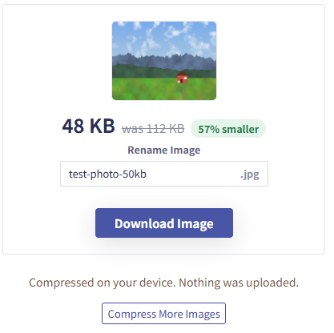
1200×900 is plenty for a profile photo or most upload forms, and the close-up held up fine. Just don’t expect to crop into it later. Its result screen says “Compressed on your device. Nothing was uploaded,” though a note at the bottom of the same page says images are removed from its server after 30 minutes. I didn’t check Pi7’s network traffic, so I can only say the wording is mixed.
JPEG Optimizer landed in the middle
JPEG Optimizer gave me 46,455 bytes (45.37 kB) at 2051×1535. Its result line says “97.00% reduced”; from the byte counts I get 97.8%, so the label comes out a little lower than the bytes show. It looked slightly softer than W3Schools, though the sign was still readable. It takes up to 20 images at once and can bundle them into a ZIP, and its privacy note says files are never sent to the server.
Cloudinary kept every pixel and paid for it
Cloudinary’s 50 KB tool reported -97.75% and 46.38 KB, and the network request matched at 47,496 bytes. The difference is how: the image stayed 4000×3000, and the result address included q_7, meaning JPEG quality 7 out of 100. Side by side with the original, the grass turns into blotches and the mountains lose their soft shading.
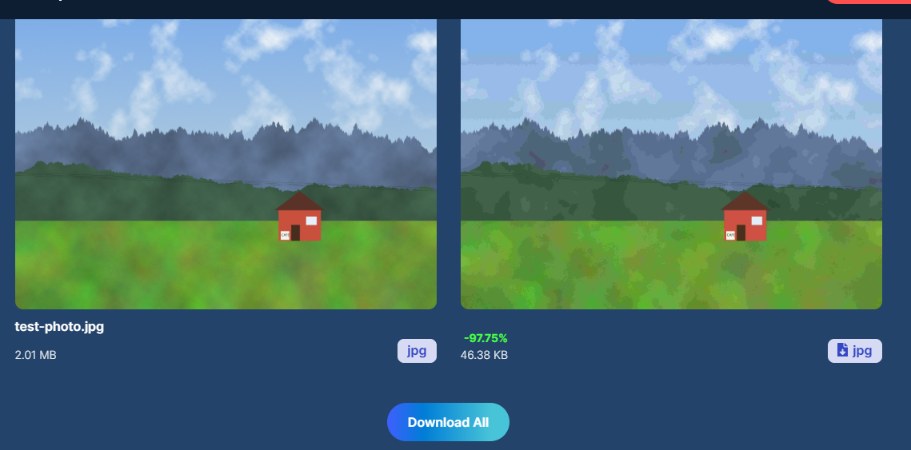
One more thing caught my eye. The page promises “In-browser compression,” but my browser showed “Uploading…” first, and the network log showed an upload-signing request and the result being served from a Cloudinary uploads folder. If you’re shrinking an ID scan, that’s worth knowing.
MB2kB said 49 kB, but I couldn’t check
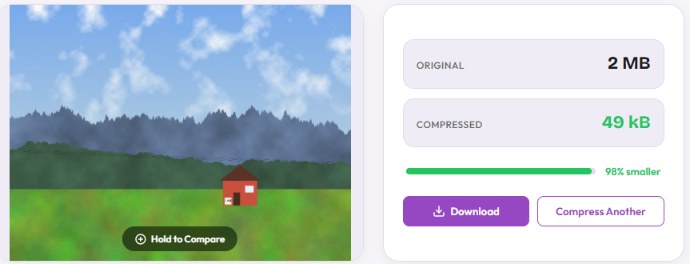
MB2kB showed “2 MB → 49 kB, 98% smaller,” and says all compression happens locally. When I pressed Download, a full-screen ad opened instead of the file, so I closed it and stopped there. I couldn’t confirm the size or dimensions of its real output, which is why it sits apart in the table below.
Why fewer pixels beat lower quality
Hitting 50 KB means throwing data away, and there are two ways to do it: keep the size and lower JPEG quality, or reduce the pixel count and keep quality reasonable. In this test, the tools that reduced pixels kept the picture recognizable, while Cloudinary’s quality-7 file showed the damage most clearly.
I saw the same pattern when I tested Korean-language compressors with this exact file for the Korean version of this comparison. There, img2go kept 4000×3000 and still came out at about 76 KB for a 50 KB target, with heavy blocking, while Watermarkly cut the picture to 2511×1883 and hit exactly 50 KB.
All five results side by side
| Tool | Bytes (KB) | Pixels |
|---|---|---|
| W3Schools | 50,816 (49.6) | 2690×2017 |
| Pi7 | 49,152 (48.0) | 1200×900 |
| JPEG Optimizer | 46,455 (45.4) | 2051×1535 |
| Cloudinary | 47,496 (46.4), quality 7 | 4000×3000 |
| MB2kB | 49 kB on screen | not checked |
All five were free to use without an account in this test. Results come from one synthetic picture with large flat areas, so a real phone photo full of fine detail will probably need more squeezing. I haven’t tested that here.
Which one should you use?
If you’re shrinking a photo for an application form, I’d start with W3Schools: in my test it kept the most pixels of the resizing tools and showed the final dimensions before I saved anything. Just mind the 50,000-byte catch above. Pi7 is fine when a small picture is all you need. If the form also asks for exact pixel dimensions, resize to those first and then compress, so the tool doesn’t have to guess.
If the photo also needs a clean background, my test of free remove.bg alternatives covers that step.