
A Google AI Studio Android app begins with nothing more than a sentence. You describe the app you want, Gemini writes the Kotlin code and builds it, and a few minutes later the app is running in an emulator in your browser. Android app building arrived in AI Studio at Google I/O 2026, and on October 13 Google Play announced that people will be able to install these apps on their own phones without a developer account.
That second part is rolling out country by country, so we wanted to know what the process looks like for everyone else. On October 17 we built a small water-tracking app from a Google account in South Korea, where the Play option has not appeared yet, and installed it on a Samsung Galaxy phone with a USB cable. Here is every step, what got in the way, and the limits worth knowing before you start.
What Google announced on October 13
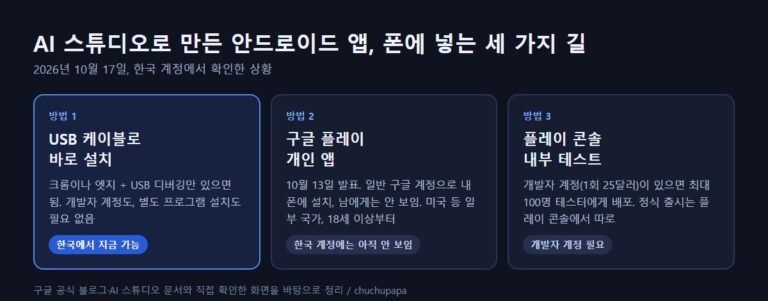
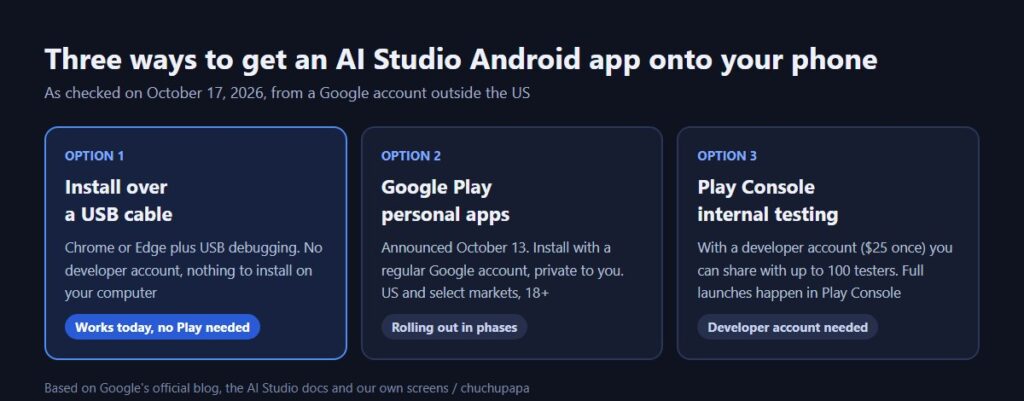
The new piece is what Google calls personal apps. An AI Studio Android app you vibe-code can be installed on your own device using the ordinary Google account you already have. Nobody else sees it, and it never appears in the public Play Store listings. In the coming months Google plans to let you pass these apps to a few friends and relatives, and if you ever want to release one to everyone, you would switch to a professional developer account and pass the same Play review as any other developer.
The catch is availability. Google is turning the feature on gradually, starting with adults (18+) in the US and some other countries, and it has not said which countries those are. On our account outside the US, the Install button for our AI Studio Android app offered only the USB route, and the Publish panel showed internal testing plus a note that publishing to Google Play is coming soon. If you see the same thing, USB is the way to go for now.
How to build a Google AI Studio Android app
All you need is a Google account and Chrome or Edge on a computer. Open the Build page in Google AI Studio to begin.
1. Pick “Build an Android app”
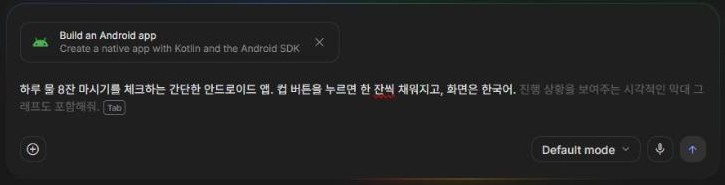
Above the prompt box, select the chip with the Android robot, “Build an Android app.” Without it, you get a web app rather than an AI Studio Android app. Then describe the app. We wrote our prompt in Korean, asking for a simple app to check off eight glasses of water a day, where tapping a cup fills it, with a Korean interface. Prompts in English work the same way.
2. Wait for the build, then test it in the emulator
Gemini writes the code and builds the project on its own. Our request took Gemini 3.8 Flash 12 minutes and 47 seconds and produced 25 files, so expect a longer wait than for a web app and keep the tab open.
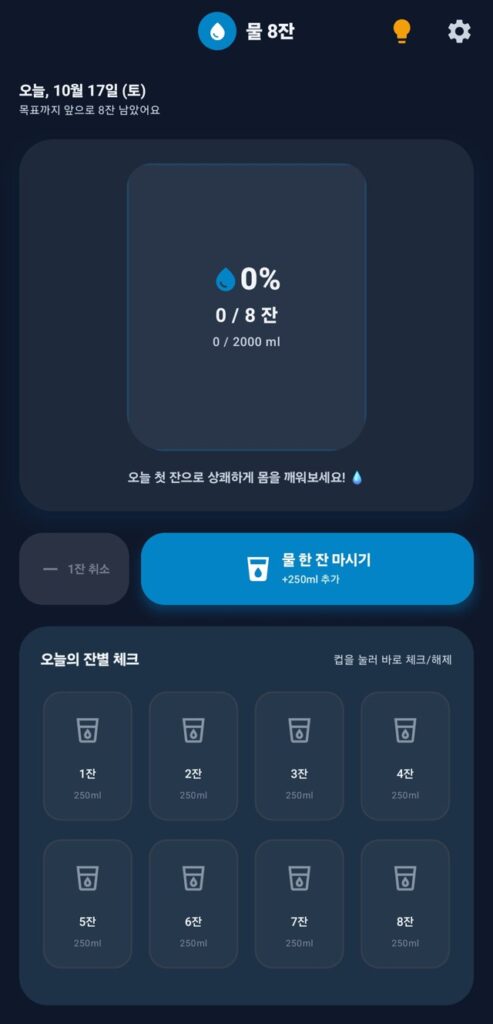
When it finishes, a phone-shaped emulator appears on the right, and the AI Studio Android app is fully clickable inside it. Gemini named ours “물 8잔” (“8 Glasses of Water”) and added features we never asked for: a seven-day history, settings for the daily goal and glass size, hydration tips and local storage so records survive a restart.
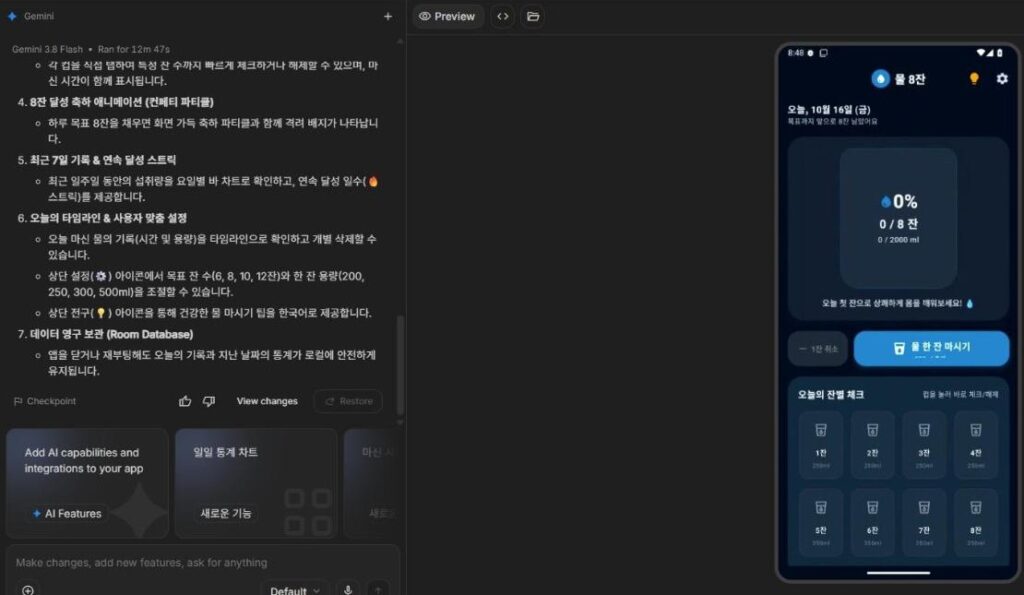
To change anything, type the request into the box at the lower left. AI Studio also suggests next features above the box, such as a daily statistics chart.
Install a Google AI Studio Android app over USB
To put the AI Studio Android app on your phone, click Install in the preview panel, and AI Studio shows a four-step USB guide. According to the AI Studio Android docs, the browser talks to your phone through WebUSB, so you do not need to install ADB or any other tool on your computer. You do need Chrome or Edge and a USB cable that carries data, not just power.
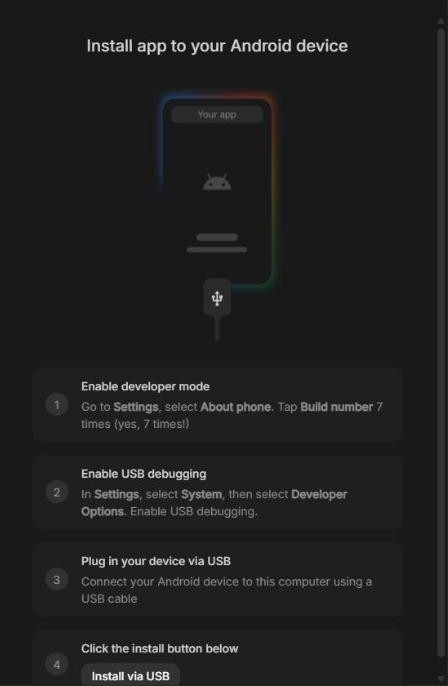
The on-screen guide follows stock Android, and Samsung puts some menus in different places. On a Galaxy phone, the steps look like this:
- Turn on developer mode: go to Settings > About phone > Software information and tap Build number seven times. Enter your lock screen PIN when asked.
- Turn on USB debugging: a new Developer options entry shows up at the very end of the main Settings list (the guide says it is under System, which is not where Samsung puts it). Open it and switch on USB debugging.
- Plug in: unlock the phone, then connect it to the computer.
- Click Install via USB: if the browser asks which USB device to use, pick your phone. When the phone asks “Allow USB debugging?”, tap Allow.
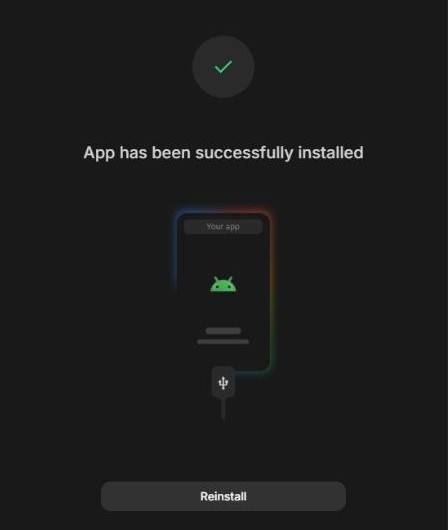
After we tapped Allow, the rest took about 20 seconds. The panel briefly showed “Uploading APK” and then “App has been successfully installed.”
When the “Allow USB debugging” prompt never shows up
This was the slowest part of installing our AI Studio Android app. Our first try came before USB debugging was on, so the install sat waiting and then failed. Even after we switched it on, the prompt did not appear right away. These are the things to check:
- Unlock the phone: the prompt only appears on an unlocked screen, so wake and unlock the phone before plugging in.
- Reconnect the cable: unplugging and plugging back in after turning on USB debugging can bring the prompt up.
- Check Auto Blocker: on Galaxy phones, Auto Blocker (Settings > Security and privacy) can block commands sent over USB. Turn it off only while you install, then turn it back on.
- Reset the authorization: in Developer options, tap “Revoke USB debugging authorizations,” then reconnect to get a fresh prompt.
- Try another cable: a charge-only cable will not work. If the phone does not offer a file transfer option when connected, swap cables.
Our Google AI Studio Android app on a real phone
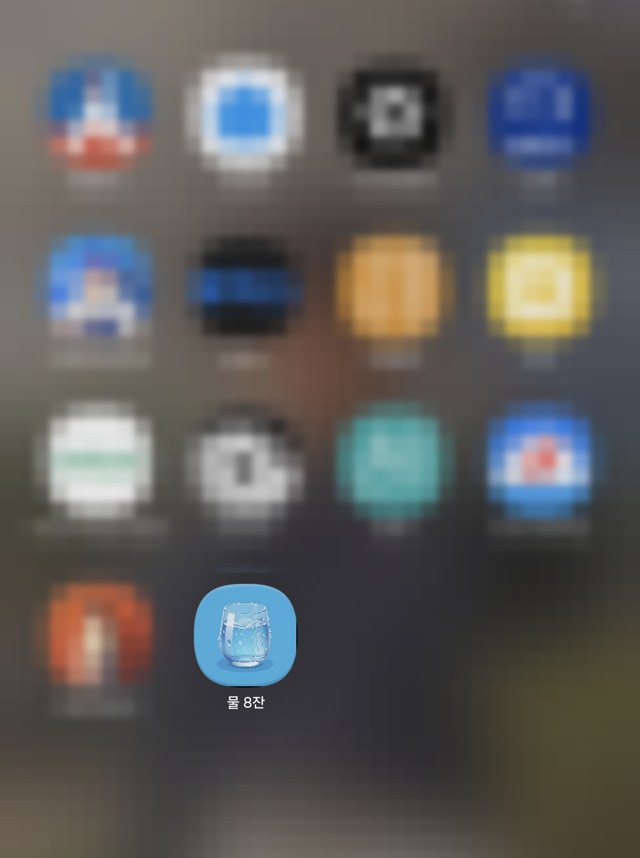
Once installed, the AI Studio Android app shows up with its own icon like any other app, even though it never went through the Play Store.
It opened to the same screen we had seen in the emulator: today’s date, 0 of 8 glasses and 0 of 2,000 ml. Each tap on the big “drink a glass” button adds 250 ml, and a grid of eight cups below lets you tick glasses on or off. From one sentence to a working app on a phone, we did not write a single line of code.
Publishing an AI Studio Android app: internal testing only for now
Publish uploads your AI Studio Android app to Play Console as an internal test, which the AI Studio docs say can reach as many as 100 testers. For that you need to register as a Play developer (a one-time $25 fee) and fill out your developer profile in Play Console. AI Studio signs the APK and creates the listing for you.
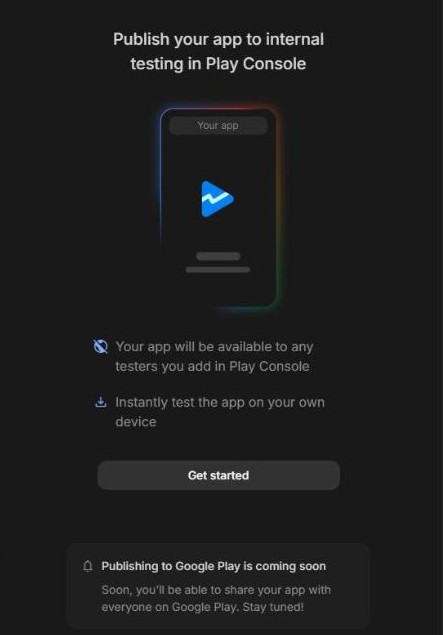
A box at the bottom of the panel reads “Publishing to Google Play is coming soon.” Until then, a full public release has to be handled directly in Play Console.
What a Google AI Studio Android app cannot do yet
The AI Studio docs list several limits. Simple personal tools work well, but anything that needs a server does not.
| Area | Current limit |
|---|---|
| Backend | Everything runs on the phone; multiplayer, Firebase and Google Workspace APIs are out |
| Structure | One activity and one module per project |
| Code | Written in Kotlin with Jetpack Compose; Java, XML layouts and C/C++ are not supported |
| Devices | Phones and tablets; watches and TVs are not supported |
| Export | The project downloads as a ZIP; there is no other export |
Turn USB debugging off when you are done
With USB debugging on, any computer you have allowed can install apps or control the phone over a cable. Once the app is installed, switch USB debugging off in Developer options, and turn Auto Blocker back on if you disabled it. The switch at the top of Developer options turns developer mode off entirely.
Keep in mind that an AI Studio Android app has not been through Play Store review. It is fine as a private tool for yourself, but if you want to give it to other people, wait for the sharing feature Google has promised or go through a proper release.
Turning a sentence into an AI Studio Android app you can tap on your own phone is worth trying at least once, and a USB cable is enough to do it today, even where the Play option has not arrived yet. For more of Google’s make-it-from-a-prompt experiments, see how it builds games in our Google Playground guide, or make music in the browser with the Chrome Music Lab Song Maker.